Three UI cards, three redesign stories. Each revision clarifies what the card needs to say — and how.
Interface Context
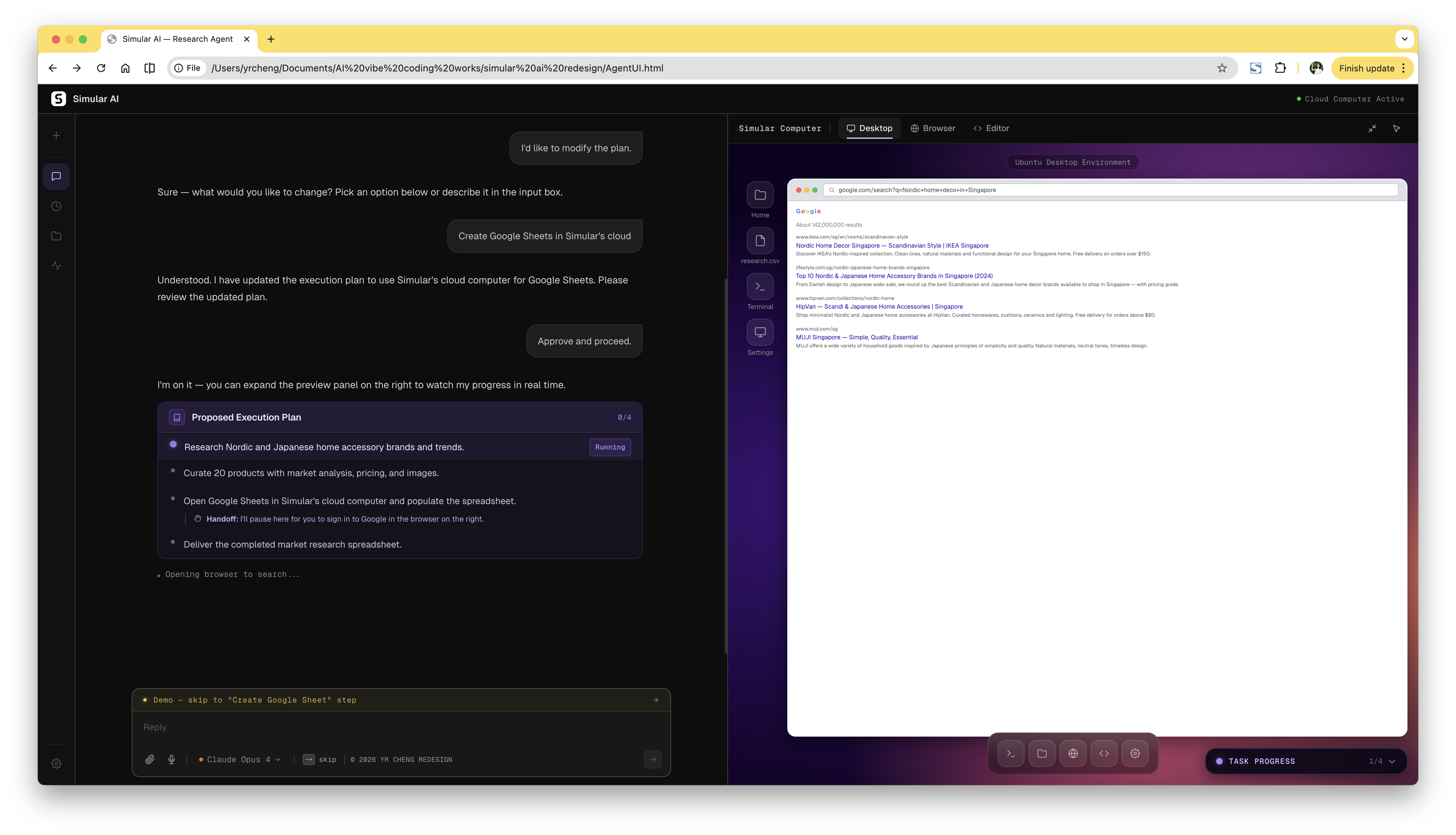
Appears in the chat panel before the agent starts. The user reviews each step and approves — or modifies — the plan before anything runs.
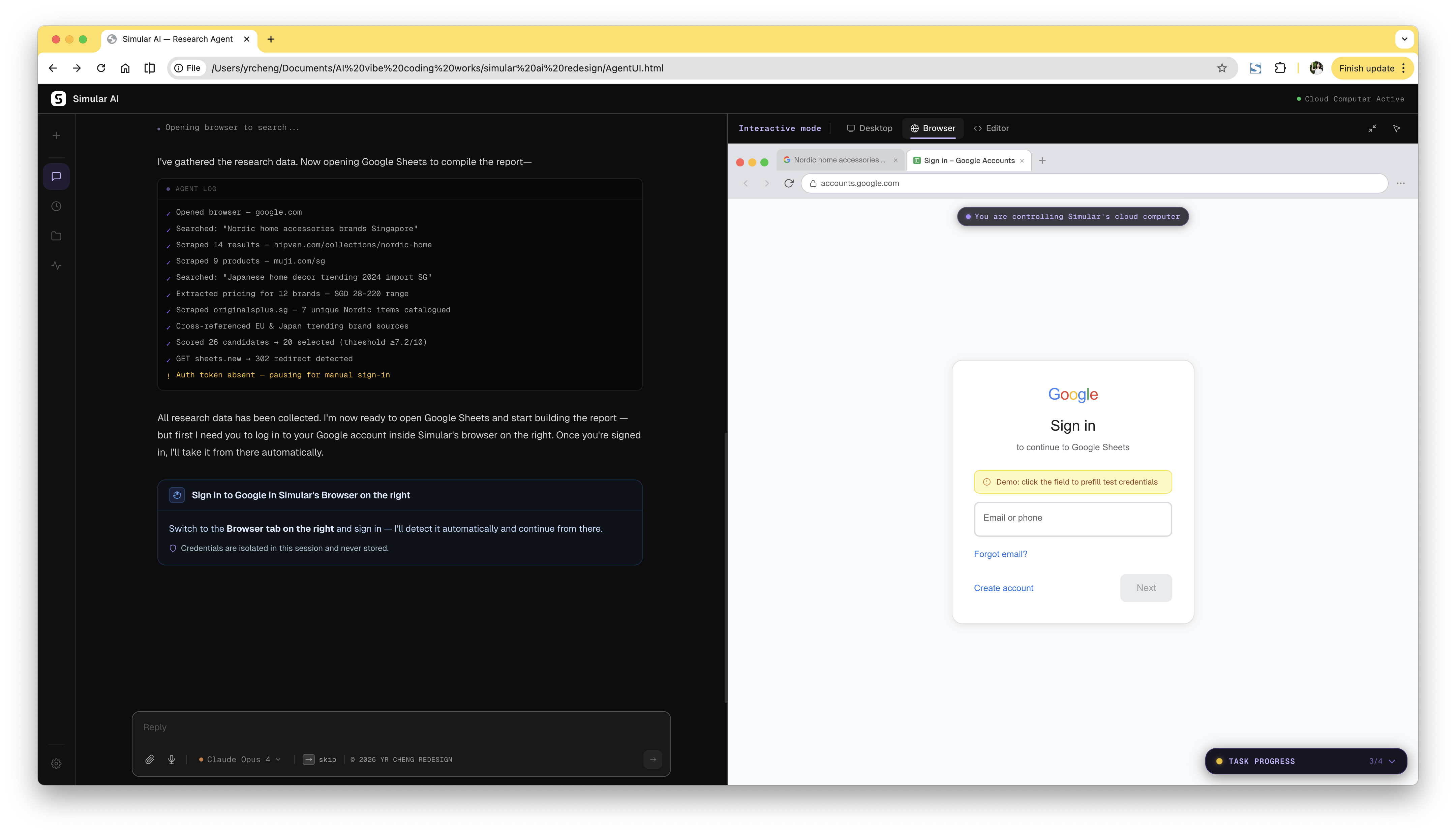
Surfaces mid-task when the agent needs user credentials to continue. Once the user signs in, the agent resumes automatically — no manual re-trigger needed.
The agent's proposal before anything runs. One job: enough clarity to approve confidently.
The "Pending" pill makes the approval-waiting state visible. Blue handles the handoff — it doesn't read as an error.
Two problems. The near-black background gives the card almost no visual separation from the chat — it disappears into the interface. And the approve button is green while the rest of the card is blue. The Final adds a purple tinted border (the card now stands out against the chat), and uses purple for handoff, border, and button — one colour throughout.
Proposed plan for approval
Running the plan
Purple isn't used for errors, warnings, or success states anywhere in the interface — so using it for the handoff note, card border, and approve button creates no confusion. Every element in the card points to the same colour.
The slow pulse replaces a spinner. A spinner implies "wait, don't do anything." The pulse shows the agent is working without demanding the user's attention.
Shown after the user modifies the plan. They've already read it once — one job: make what changed immediately visible.
Three indicators in the header: a "Pending" pill, an "updated" badge, and brighter white text on the changed step. The intent: make the change visible without the user having to search for it.
In practice, the header is crowded and none of the labels point to which step changed. White vs. light grey is easy to miss on a dark background. The Final removes the header labels and puts an amber left-border directly on the changed step — one marker, at the step itself.
An amber left-border marks the changed step directly. Unchanged steps are visually identical to before — so the user immediately sees what's different without scanning.
Amber is used elsewhere in the interface to mean "this needs your attention." Here it means: this is the step you just modified — check it looks right before approving.
Shown when the agent pauses mid-task. The challenge: a clear directive — what to do, where — without making a routine sign-in feel like a crisis.
Intent: direct the user to the browser panel on the right, explain why, reassure on security.
Three problems: the labelled-row layout reads like a form to fill in, not an instruction to act on. Amber is conventionally used for errors — the user's first read is that something went wrong. The Cancel / Simulate Login Success buttons ask the user to do something the system can detect automatically.
Switch to the Browser tab on the right and sign in — I'll detect it automatically and continue from there.
"Sign in to Google in Simular's Browser on the right" — names the action and the location. The user knows exactly what to do and where, before reading another word.
Body is one sentence: the agent resumes automatically after sign-in. The security note is there for users who want it — it doesn't block the main message. Blue instead of amber: it reads as information, not a warning.